


MIDI Controller article
The Ultimate Guide to Midi Controllers
A MIDI controller makes zero sound on its own. Here's what it actually does, the different flavours you'll find, and how it all talks to your setup.
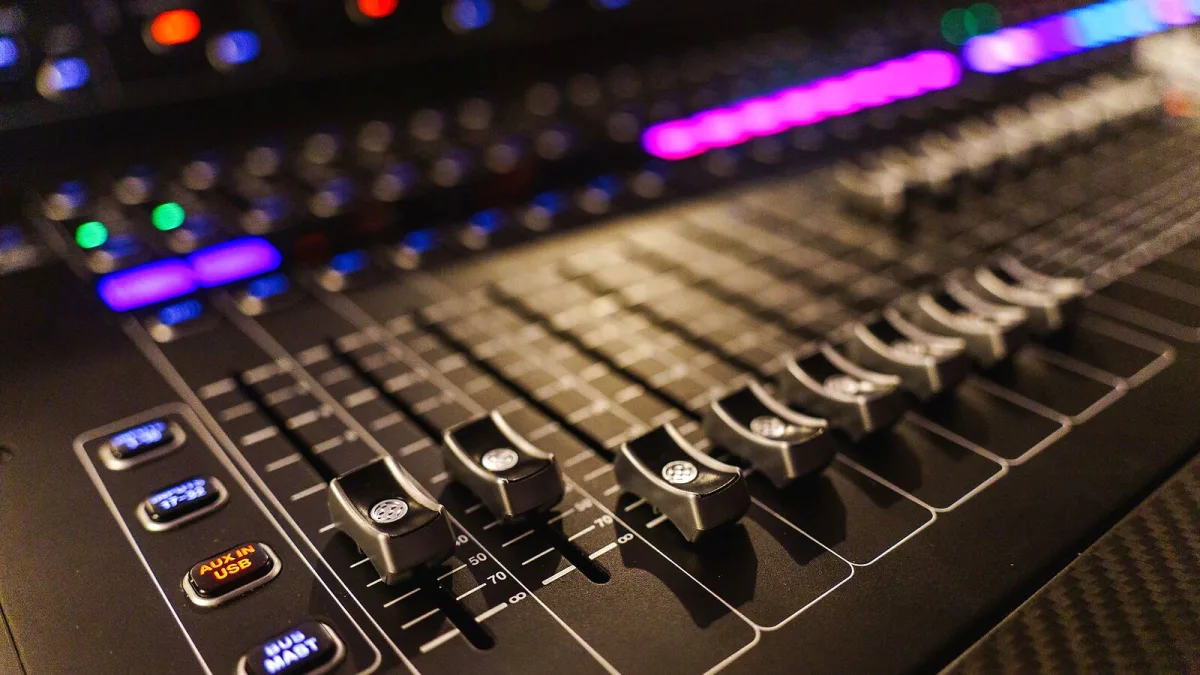
Here's the thing nobody tells you when you're starting out: a MIDI controller makes precisely zero sound on its own. Plug it straight into an amp and you'll get nothing but silence and a slightly confused look on your face. What it does instead is send performance data — notes, velocity, knob twists, fader moves — to whatever software or hardware is actually doing the sound-making. Once that clicks, the whole world of electronic production suddenly makes a lot more sense. Let's get into how these things actually work.
So What Is It Really Doing?
MIDI stands for Musical Instrument Digital Interface, and it's not an audio format at all — it's a language instruments use to talk to each other. Press a key on a MIDI controller and it doesn't send sound down the cable; it sends a message saying which note, how hard you hit it, and when you let go. That message gets picked up by a software instrument, a hardware synth, a drum machine, or your DAW, and that receiving device is what actually generates the noise. One obvious upside: you can swap the sound behind your performance in seconds without touching how you played it.
The Different Flavours
"MIDI controller" is a big umbrella term, and it covers more ground than most people realise:
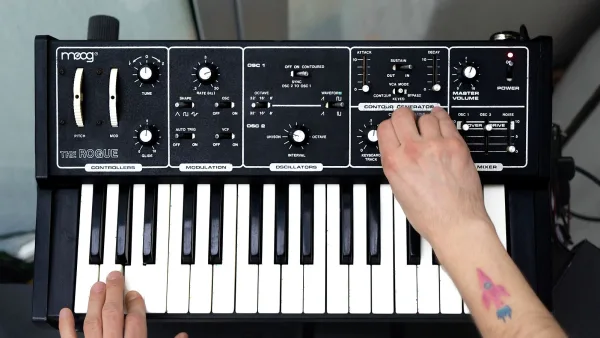
- Keyboard controllers — the classic choice for melody, chords and anything piano-shaped.
- Pad controllers — built for finger drumming, sample triggering and launching clips live.
- Control surfaces — knobs and faders for hands-on mixing and plug-in tweaking.
- Sequencers and grooveboxes — generate and reshape patterns, often standalone.
- Specialist gear — wind controllers, MIDI guitars, foot controllers and expressive MPE devices for players who want something less keyboard-shaped.
A MIDI keyboard is just one member of this family, not a synonym for the whole thing — useful to know before you go shopping.
Getting One Talking to Your Computer
The basic software setup is refreshingly quick: plug it in over USB, open your DAW, create or select an instrument track, choose the controller as your MIDI input, and start playing. Older or more hardware-focused setups lean on five-pin MIDI DIN instead, with separate MIDI OUT, MIDI IN and sometimes MIDI THRU ports for chaining gear together. USB has largely taken over for computer-based work, but that old five-pin connector is still very much alive in hardware studios.
Beyond Notes: What Else Gets Sent
Notes are only part of the story. Turn a knob and you're sending a Control Change message, the kind of thing that's commonly mapped to filter cutoff, resonance, volume or pan. Hit a pad instead of a key and you might be sending a note message anyway, just from a different physical shape. Program Change messages swap presets and patches, transport commands start and stop your DAW, and pitch-bend or modulation data usually comes from a wheel, touch strip or joystick sitting to the left of the keys. None of it is audio — it's all instructions, waiting for something else to turn them into sound.
Two more terms worth knowing early: velocity, which measures how hard you struck a key or pad and usually shapes volume or brightness, and aftertouch, which measures pressure after the note is already down. Channel aftertouch applies one pressure value to everything on that channel at once; polyphonic aftertouch lets each note carry its own independent pressure, which is a genuinely expressive feature when the controller, DAW and instrument all support it.
A Quick Word on MIDI 2.0
MIDI 2.0 is an extension of the original standard, not a replacement for it, and backward compatibility was baked in from the start. It brings higher-resolution data, per-note control and two-way communication between devices, so gear can actually negotiate capabilities with each other. The catch is that your controller, DAW, operating system and instrument all need to support the relevant MIDI 2.0 functions before you see any real benefit — plenty of current gear is still happily running on MIDI 1.0 even when it's plugged in over a shiny modern USB cable.
There's No Single "Best" One
This is worth saying plainly: there's no universally correct MIDI controller, only the right one for what you're actually doing. A pianist wants weighted keys and a proper range; a beatmaker wants responsive pads; a live performer wants clip-launching and reliability over raw feature count. If you're weighing up an actual purchase, our complete buyer's guide walks through exactly what to check, and our round-up by price tier is a good next stop. New to all this? Our beginner's guide starts from square one, and our piece on common mistakes to avoid will save you a headache or two.
The Bottom Line
Once you understand that a MIDI controller is a messenger, not a sound source, everything else about it clicks into place. Work out which flavour actually suits how you make music, and the rest is just details.




Comments