


DJ Set guide
How to Set Up and Use Dj Set
Got the gear? Here's exactly how to connect a DJ set, set your gains properly, and play your first clean mix without anything clipping or going silent.
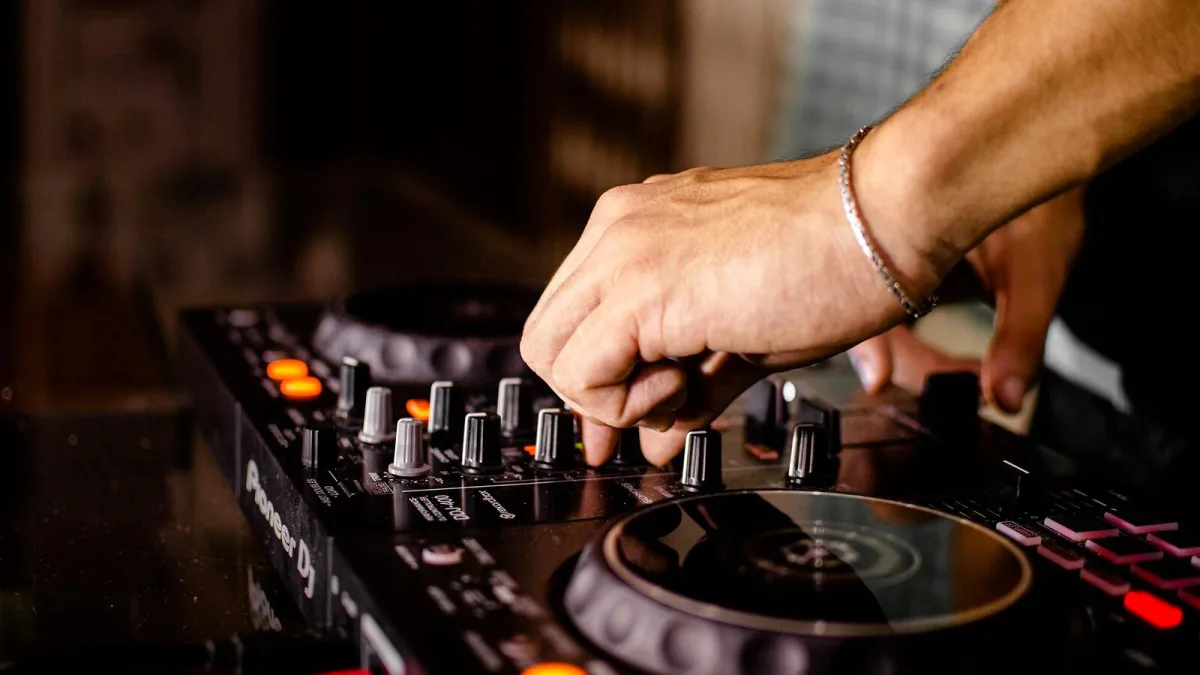
You've got the gear. Now comes the bit nobody tells you clearly enough: how to actually connect it, get sound moving through the right channels, and play your first real mix without anything squealing, silent or clipping. Here's the setup broken down into steps that actually work in order.
What Your DJ Set Needs Before You Start
- A DJ controller, or decks plus a separate mixer
- A pair of closed-back headphones for cueing
- A laptop (unless you're running standalone media players) with your DJ software installed
- A cable or output to your speakers or a sound system
- Some music already loaded into your library or on a USB drive
Setting Up Your DJ Set Step by Step
- Position your gear on a stable surface. Give yourself room either side for your hands and cables, and keep the setup level so jog wheels and platters behave predictably.
- Connect the main output to your speakers or sound system. Use the master output, not a headphone jack, and keep the master fader down until you've checked everything else.
- Plug your headphones into the dedicated cue output. This is separate from the master signal, which is exactly the point — it lets you preview a track privately before the room hears it.
- Connect your laptop and open your DJ software, or insert your prepared USB drive if you're running standalone players. Let the software finish analysing your tracks before you rely on its beat grids.
- Set your gain staging. Bring each channel's trim up until the meter sits comfortably in the green, occasionally nudging into the yellow, and keep the master fader below clipping at all times.
- Test the cue system. Load a track on an unused channel, send it to your headphones only, and confirm you can hear it clearly without it leaking to the master output.
- Do a full soundcheck at low volume before you commit to your actual set, checking both channels, both cue sends, and the master output together.
Getting Your First Basic Mix Right
With everything connected, load a track on channel one and let it play to the room. Cue up your second track in your headphones, find a clean phrase boundary — the start of a new 8- or 16-bar section works well — and bring the second track's fader up gradually while matching its tempo to the first. Trim the incoming track's bass down until the drop, then bring it back once the first track's bass has faded out, so the two basslines never clash.
Troubleshooting Common Setup Snags
- No sound from the master output: check the master fader and the channel fader are both up, and that you've selected the correct output source in your software.
- Can't hear anything in your headphones: confirm the cue button is engaged on the channel you want to monitor, and check the headphone volume knob separately from the master.
- Distorted or clipping sound: pull the channel gain down first, then the master fader, rather than turning down the amplifier at the very end of the chain.
- Software won't recognise your controller: check the correct audio driver is selected in your software's preferences, and try a different USB port or cable.
Keep Reading
If you want the background on what you've just built, our explainer on what a DJ set actually is covers the theory. Still choosing your gear? See our buyer's guide and our best options by budget. First time doing any of this? Our beginner's guide is a gentler starting point, and it's worth checking common mistakes to avoid once you're comfortable with the basics above.
The Bottom Line
Connect the master output first, get the cue system working properly, set your gains before you touch a fader in anger, and soundcheck at low volume. Get that sequence right every time and the rest of your DJ set is just practice.



Comments