


X Touch article
X Touch Explained: Features, Types and Tips
A control surface, not a mixer: here's what the X-Touch actually does, and how its three models differ.
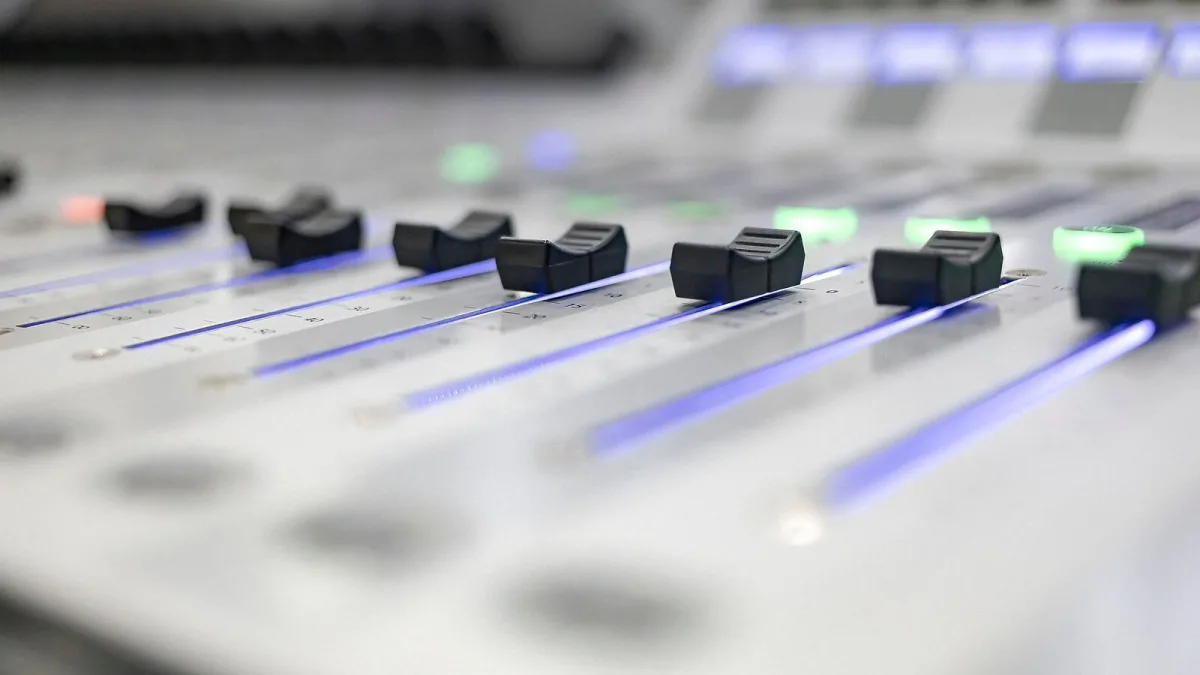
Let's take this one step at a time, the way I would with a student who'd never seen one before. The Behringer X-Touch is a control surface — a box of physical faders, knobs and buttons that lets you mix inside your recording software with your hands instead of a mouse. It doesn't record or process any sound itself. Once that one idea clicks, everything else about it makes a great deal more sense.
What a Control Surface Actually Does
Think of it as a remote control for your DAW (digital audio workstation — the software you record and mix in). Move a physical fader, and the on-screen fader follows; press a button, and it mutes or arms a track exactly as if you'd clicked it with a mouse. The advantage is entirely tactile: you can ride several levels at once, with your hands, the way engineers did on hardware mixing consoles long before software took over.
Meet the Family
There isn't just one model — there are three, each built for a different kind of setup:
| Model | Best suited to | Main characteristic |
|---|---|---|
| Full-size | Full studio mixing | Nine motorized faders, screens and meters, console-style workflow |
| Compact | Smaller studios, flexible MIDI mapping | A more compact, general-purpose MIDI controller |
| Single-fader | Tight desk space, focused control | One motorized fader plus transport and navigation |
They're not simply "big, medium and small" versions of the same thing — reviewers have pointed out that the Compact behaves more like a generic MIDI controller with partial Mackie Control compatibility, rather than a scaled-down copy of the full-size unit. If you're trying to decide between the three for your own space and budget, our model comparison guide goes through that decision properly.
What's on the Full-Size Unit
- Nine touch-sensitive, motorized 100mm faders — eight channels plus a master
- Eight rotary encoders with LED rings, for pan, sends and mapped plug-in parameters
- Eight LCD "scribble strips" that display track names
- 92 illuminated buttons covering mute, solo, record-arm, select and transport
- A jog/shuttle wheel for timeline navigation
- USB, five-pin MIDI in and out, Ethernet, and a built-in USB hub
How It Talks to Your Software
The X-Touch works through control protocols, chiefly Mackie Control (often shortened to MCU) and HUI, both of which many major DAWs already understand. Set your software to recognise it as a Mackie Control surface, rather than treating it like a generic instrument, and it should pick up your channels automatically. Support isn't identical everywhere, though — basic fader, mute, solo and transport control tends to work broadly, while detailed plug-in parameter display varies a good deal from one DAW to the next.
What It Isn't
Here's the bit that trips a few students up, and it's worth being plain about: this is not a mixer, and it's not an audio interface. It has no microphone preamps, no analogue-to-digital conversion, no monitor outputs of its own. You'll still need your usual audio interface and DAW alongside it — the X-Touch simply gives your hands something better to do than hover over a mouse. Our beginner's guide walks through setting it up for the very first time, step by step, once you're ready.
Who Actually Benefits From One
Home producers who find themselves endlessly dragging on-screen faders with a mouse, anyone who wants automation passes to feel more like performing than clicking, and pianists or keyboard players building out a home studio who'd rather have hands-on control than menu-diving. If your sessions rarely go beyond a handful of tracks, the single-fader model may suit you better than the full-size one — again, our comparison guide covers exactly that trade-off.
The Bottom Line
The Behringer X-Touch family gives you back the hands-on feel of a mixing desk, without needing an actual mixing desk — it just needs a DAW that understands it and a bit of patience getting the protocol set correctly. Once you know it's a controller, not a mixer, the rest is simply a matter of choosing the right size for your desk and your sessions.






Comments