


X Touch article
Common X Touch Mistakes to Avoid
The habits that quietly cause X-Touch headaches — and the simple fix for each one.
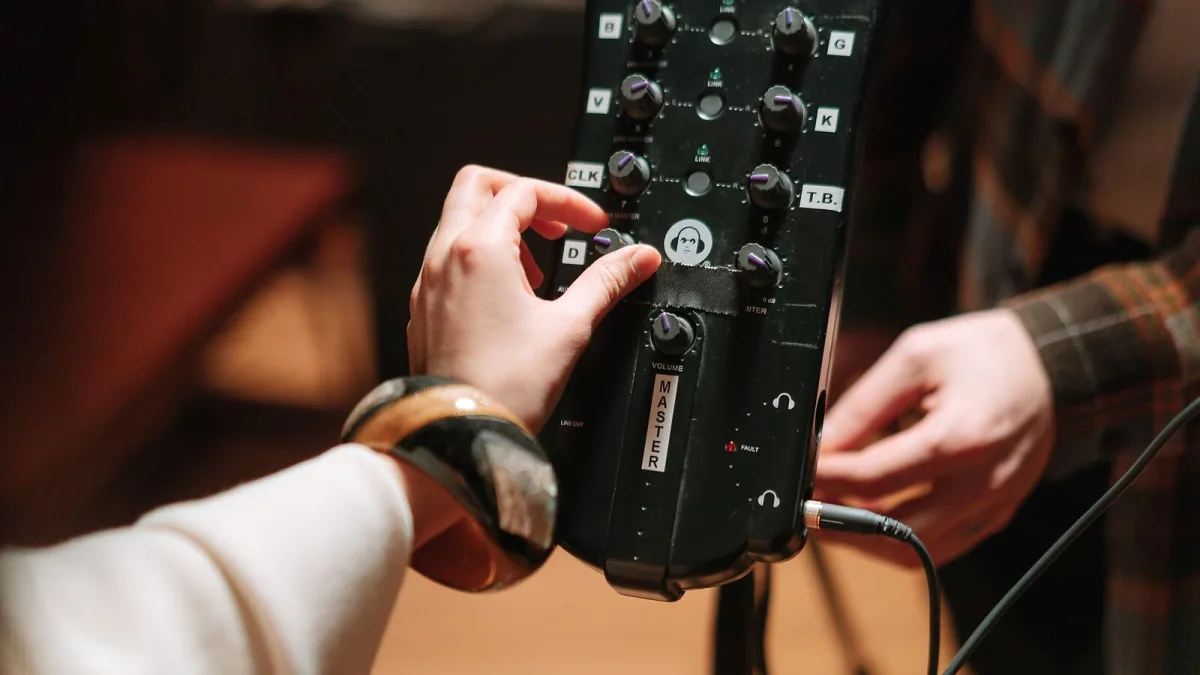
I've seen students make most of these X-Touch mistakes at least once, so let's go through them properly before they cost you an evening of frustration. None of them are complicated to fix — they're mostly a matter of understanding what this box actually is, and isn't.
Expecting Your X-Touch to Record or Process Sound
This is the big one. A control surface has no microphone preamps, no analogue-to-digital conversion and no monitor outputs of its own — it sends control data to your software, nothing more. Your audio interface still does all the actual recording and processing, exactly as it did before this arrived on your desk.
Setting Up Your X-Touch as a Generic MIDI Device
If you add your X-Touch to your DAW as a plain MIDI controller rather than choosing "Mackie Control" (or MCU) as the surface type, faders and buttons often won't map to the right functions at all. This is by far the most common setup mistake, and it's usually the first thing worth checking if nothing seems to respond properly.
Assuming Every DAW Behaves Identically
"Works with every DAW" is really marketing shorthand for "supports a widely used protocol." Basic fader, mute, solo and transport control tends to work reliably across most major software, but detailed plug-in parameter display and banking behaviour genuinely differ from one DAW to the next. Don't assume a workflow you've read about for one piece of software will look identical in yours.
Treating the Compact as a Miniature Full-Size Unit
It's tempting to assume the smaller model in the range is simply a shrunk-down copy of the bigger one, but reviewers have been specific that it behaves more like a general-purpose MIDI controller with only partial protocol support. Buy it for what it actually is, not for what its name suggests.
Fighting the Touch-Sensitive Faders
New users sometimes grab a fader mid-automation-pass without meaning to, wondering why the software suddenly stopped following its own programmed movement. The faders are designed to sense your touch and hand control back to you the moment you make contact — which is exactly what you want once you understand it, but confusing until you do.
Calling It an "X32 Controller"
Some listings describe it loosely this way, but that overstates things. It's more accurate to say it supports selected networking functions with Behringer's digital mixer ecosystem, not that it's a full physical replacement for operating one. Check current documentation rather than relying on a retailer's shorthand description.
Buying the Biggest Model "Just to Be Safe"
Nine motorized faders sound appealing until they're taking up desk space you don't have, for sessions that rarely go past four or five tracks. Choosing a size based on your actual sessions, rather than an imagined future workload, saves both money and desk space. Our model comparison guide is worth reading properly before you decide on a size.
Ignoring Your X-Touch's Cable and Desk Space Needs
Motorized faders need room to move freely, and a cluttered desk can genuinely obstruct them over time. Give the unit proper, unobstructed space rather than wedging it between a keyboard and a monitor stand.
Skipping the Basics Before Chasing Advanced Features
Jumping straight to detailed plug-in mapping before you're comfortable with basic faders, mutes and transport control just adds confusion on top of confusion. Our beginner's guide walks through the sensible order to learn things in.
The Bottom Line on X-Touch Mistakes
Every mistake on this page comes down to the same root cause: treating the unit as something it isn't, whether that's a mixer, an identical twin of a different model, or a plain MIDI device. Get the basics right first, and the rest genuinely does become second nature.






Comments