


Sibelius article
Sibelius Explained: Features, Types and Tips
Sibelius is the notation software professionals reach for when a score has to read as well as it sounds — here's how it actually works.
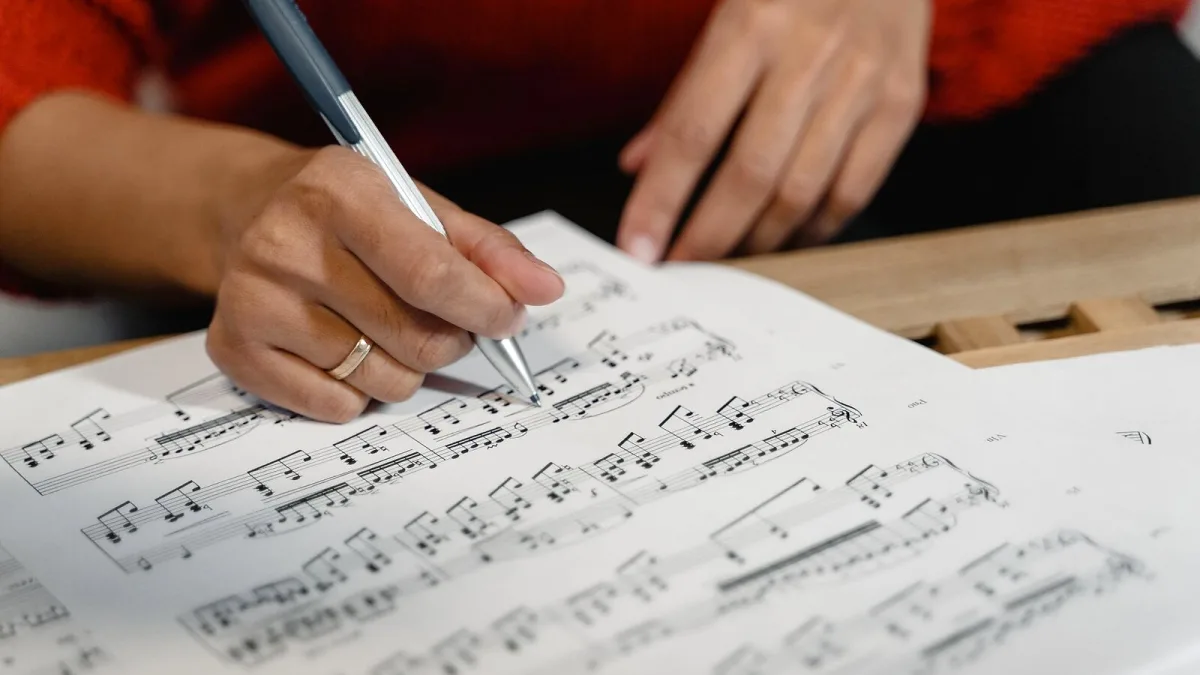
If you've ever opened a printed orchestral score and wondered how anyone gets every stave, slur and dynamic mark to line up so neatly, the answer is very often Sibelius. It's the notation software that composers, arrangers, copyists and music teachers reach for when a project needs to look and read like a professional score — not just play back convincingly. Here's what it actually does, how the different editions differ, and a few honest tips from someone who's spent a fair few late nights staring at that notation window.
What Sibelius Actually Is
Sibelius is music-notation software made by Avid. Its job isn't recording or mixing audio — that's what a digital audio workstation is for. It exists to help you write, edit, lay out and print readable musical notation, from a simple lead sheet to a full orchestral score with dozens of transposing parts.
That distinction matters more than it sounds. A DAW captures and shapes sound. It captures and shapes musical information — pitch, rhythm, dynamics, phrasing — in a form a human performer can read at sight. The two do overlap (it plays your score back through sampled instruments), but engraving, not audio, is the whole point.
The Three Editions, Honestly Explained
Avid sells it in three tiers, and the number that separates them is staves — the number of individual lines of music a score can hold at once.
| Edition | Stave limit | Realistically suits |
|---|---|---|
| First | Up to 4 staves | Simple songs, lead sheets, basic classroom work |
| Artist | Up to 16 staves | Students, arrangers, small-to-mid ensembles |
| Ultimate | Unlimited staves | Orchestral, choral, film and professional publishing work |
Four staves sounds like plenty until you remember a piano part alone usually takes two, and a choir with divided parts can eat through the rest before you've even reached the accompaniment. If you're weighing up which tier is right for your own projects, the buyer's guide goes through the decision in more depth.
How a Score Actually Comes Together
The workflow is fairly consistent whatever you're writing. You start from a template or instrument list, set the title, key, time signature and tempo, then get notes onto the page. From there it's a case of layering in the detail: dynamics, articulations, lyrics, chord symbols, rehearsal marks, and whatever playing techniques the piece needs.
Note entry itself can happen a few different ways — typing on a computer keyboard using shortcuts, clicking with a mouse, playing in from a MIDI keyboard, or entering notes one at a time in step-time. Flexi-time (real-time) entry captures a live performance and turns it into notation, though it nearly always needs tidying up afterwards. None of these methods is "correct" — they suit different jobs and different musicians.
Notation Features Worth Knowing
Once the notes are in, it gives you a genuinely deep toolkit for making a score readable and performer-friendly:
- Clefs, transpositions, key and time signatures
- Multiple independent voices and tuplets
- Dynamics, hairpins, articulations and ornaments
- Lyrics, chord symbols and rehearsal marks
- Guitar tablature and chord diagrams
- Percussion notation and specialist noteheads
- Linked parts, so editing the score updates every individual player's part automatically
That last point is the one that saves the most time in practice. Before software like this, a copyist would redraw every part by hand whenever the composer changed a bar. Linked parts mean the conductor's score and the trumpet part are, in effect, the same document viewed two different ways.
Playback: Useful, Not the Whole Truth
It will play your score back through built-in sound libraries, which is handy for checking rhythms, hearing harmonic movement, or catching a missing rest. But it's a diagnostic tool, not proof the score is finished. A convincing playback mock-up depends on sample libraries, humanisation and mixing choices that have nothing to do with whether the actual notation is correct or clean for a performer to read. Plenty of scores sound fine on playback and still contain awkward page turns, ambiguous rhythms or a poorly placed cue — the kind of thing only a proofread catches. There's more on this in the piece on common mistakes to avoid, several of which come down to trusting the playback too much.
Getting Your Score Out into the World
It supports printing, PDF export, and audio or video export, plus various sharing and publishing options depending on the edition. Before exporting anything for real use, it's worth double-checking page size, part names, transpositions, bar numbers, instrument ranges and page turns — a PDF export often shows up collisions and layout problems the on-screen editing view hides.
Windows, macOS and Beyond
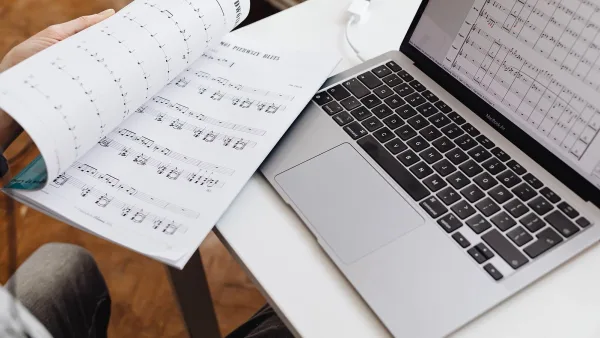
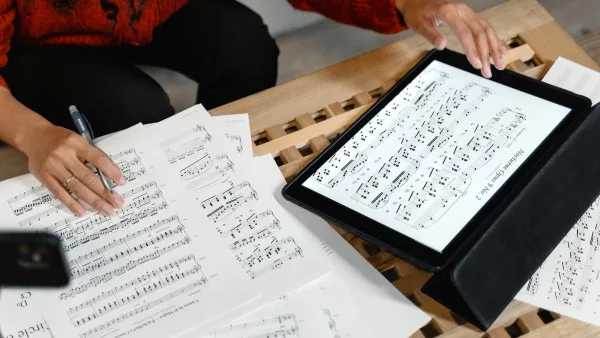
Sibelius runs on both Windows and macOS, with Avid also documenting use on iPad for parts of the workflow. Desktop and mobile aren't identical experiences, so if a tablet is central to how you plan to work, it's worth checking exactly what's supported on that platform before relying on it.
Who It Actually Suits
If you're brand new to notation software and want the gentlest on-ramp, the beginner's guide is a better starting point than diving into every feature above. If you already know you need it but aren't sure which edition earns its keep, have a look at the best Sibelius for the money for a tier-by-tier breakdown.
The Bottom Line
Sibelius earns its reputation because it treats notation as a craft in its own right, not an afterthought to playback. Whether you're jotting down a lead sheet in First or preparing a full orchestral set in Ultimate, the underlying philosophy is the same: readable, performer-ready notation, built on a workflow that scales from a single melody line to a hundred-piece score.



Comments