


Metronome App roundup
Metronome App: A Complete Buyer's Guide
Most metronome apps share the same core function — the differences are in the practice tools built around it. Here's how to choose what you actually need.
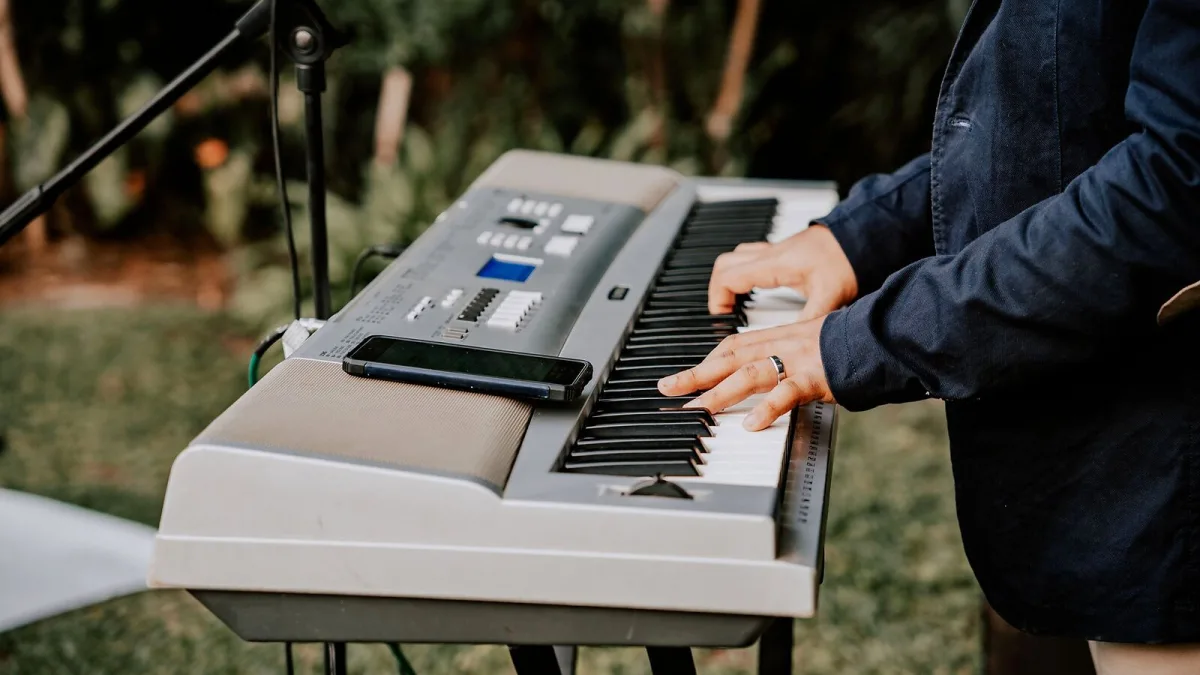
Choosing a metronome app is less about specification and more about how you actually practise. The options go from completely free single-click generators to subscription-based practice systems with progress tracking, setlists and wearable integration. Most musicians need something in between. Here's how to work out what that is for you.
Start with How You Practise
Before looking at any specific app, think about what you actually do in a session. Do you sit at an instrument and work through specific passages at a fixed tempo, or do you run through full songs and need to jump between different tempos? Do you practise in a room where you can hear a click clearly, or do you need something you can feel? Are you working alone, or setting tempos for a group?
Your answers to those questions will cut the field dramatically. A drummer in a loud rehearsal room has completely different requirements from a classical pianist at home or a producer building loops in a DAW.
Free vs Paid: What Do You Actually Get?
Most basic metronome apps are free. The free tier usually includes BPM control, a start/stop function, a simple click sound and sometimes tap tempo. That covers a very large percentage of common practice needs.
Paid features, whether via one-time purchase or subscription, tend to include:
- Speed trainer — automatic BPM increases over repetitions
- Gap and mute training — alternating silent bars to build internal pulse
- Subdivision and accent control — eighth notes, triplets, custom beat patterns
- Odd time signatures — 5/4, 7/8, 11/8 and so on
- Polyrhythm support
- Saved presets and setlists
- Practice logging and progress tracking
- Wearable device integration
Whether those features are worth paying for depends entirely on whether you'll use them. A guitarist working on a repertoire of odd-meter jazz tunes genuinely needs subdivision and accent control. A player who wants to speed up a chord change probably only needs a BPM slider.
Key Features to Evaluate
Tap Tempo
Tap tempo lets you set the BPM by tapping the screen in time with a track or a band count. It's faster and more accurate in practice than scrolling to an exact number when you need to match something you're hearing. Most metronome apps include this; check it's there if you'll need it.
Subdivision and Accent Control
A standard click marks each quarter note. Subdivision control lets you add eighth notes, triplets or sixteenth notes as a separate layer at a different volume — so you can hear the main beat and the subdivisions simultaneously. This is genuinely useful for developing accurate, even note placement between the main beats. Yamaha's metronome app specifically offers independent volume control for individual subdivisions.
Speed Trainer
A speed trainer increases the BPM automatically after a set number of repetitions. It removes the temptation to skip ahead to faster tempos before you're ready. Some apps let you set a starting tempo, a target tempo and an increment. Simple, but surprisingly effective for technical passages.
Gap Training
Gap mode alternates audible and silent bars. You keep playing during the silence and check whether you're back on the beat when the click returns. It's one of the most effective practice tools for developing an internal pulse — the ability to keep time without an external reference. This feature is genuinely worth paying for if you're working seriously on rhythm.
Display and Feedback Options
Think about how you'll use the app in context. If you're at a drum kit, you need the click in headphones or a monitor — the phone speaker won't cut through. If you need a silent practice option, haptic feedback (vibration through the phone or a wearable device) changes things entirely. Soundbrenner's metronome integrates with their wearable Pulse device for exactly this use case. If you work with a music stand in front of you, a clear visual beat indicator can supplement the click usefully.
Setlists and Song Management
If you're playing in a band or ensemble and need to run through an ordered setlist with different tempos per song, look for an app that supports saving songs with section breakdowns. Metronome Beats and Soundbrenner both offer this. For rehearsal prep and live performance, it's far more practical than manually setting the BPM before each song.
Platform Considerations
Check whether the app runs on your platform before committing. Some apps are iOS-only; others are Android-only; a few are cross-platform but with feature differences between versions. If you use multiple devices, check whether settings and presets sync across them. Free tiers can differ between iOS and Android versions of the same product, which catches people out.
Audio Latency: A Real Limitation
If you use Bluetooth headphones, be aware that Bluetooth audio introduces latency — a small delay between the signal and what you hear. On some devices this is as little as 20 milliseconds; on others it's well over 100ms. For a metronome, that inconsistency makes the click feel off. Wired headphones or the device speaker bypass this entirely. It's one of the less obvious factors that affects how well any metronome app works in practice.
The Short Version
For general practice: any free basic metronome app does the job. For drummers, the combination of loud click output and haptic feedback matters. For players working seriously on timing and rhythm, gap training and subdivision control are worth paying for. For rehearsal and live performance, setlist management becomes the priority.
For a broader look at the different types and how they work, see the full explainer. If you're new to using a metronome at all, the beginner's guide starts from scratch. And for the mistakes to watch out for, the guide to common mistakes is a useful companion.



Comments