

DAW for Linux article
Daw for Linux for Beginners: A Complete Guide
Getting started with music production on Linux takes a bit of setup, but the path is clearer than it used to be. Here's what to do first.
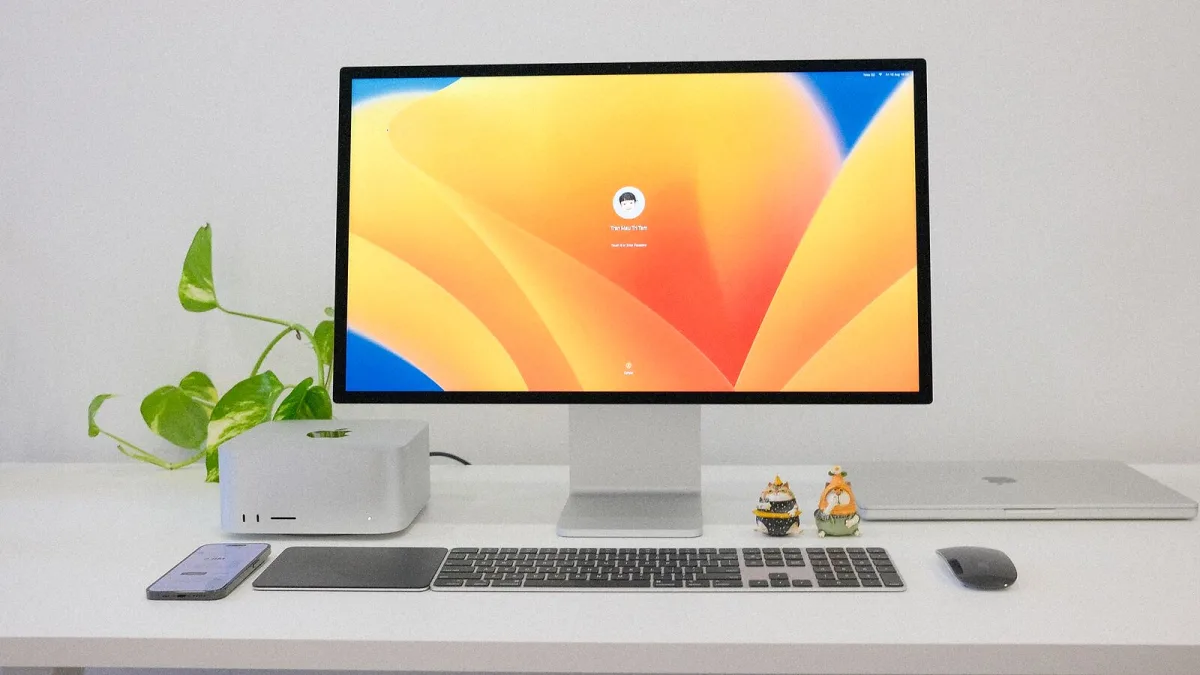
Getting started with music production on Linux is more straightforward than it once was, but it does require understanding a few concepts that don't apply on Windows or Mac. This guide takes you through setup and first use step by step.
Choosing Your Starting Point
If you're new to Linux and looking for a DAW for Linux simultaneously, Ubuntu Studio is the recommended starting distribution. It comes pre-configured with a real-time kernel, JACK audio support and a curated set of production applications. It eliminates most of the configuration steps that trip up beginners.
If you're already on a mainstream Linux distribution (Ubuntu, Fedora, Mint), you can add the production tools without reinstalling. Install PipeWire if it's not already your audio server (most current distributions ship with it), and install your chosen application from the package manager or directly from the developer's site.
Setting Up Audio: The Essential First Step
Before opening a DAW for Linux, confirm that your audio interface is working. Connect it, open a terminal and run aplay -l to list available audio devices. If your interface appears, it's recognised by ALSA. For most USB audio interfaces (Focusrite Scarlett, SSL 2, Audient iD series), Linux support via class-compliant USB is reliable without any drivers.
In your chosen DAW, go to audio settings and select your interface as the audio device. If you're using JACK, start the JACK server (via QjackCtl or a similar tool) before launching the DAW. If you're using PipeWire, the DAW may connect automatically.
Starting with LMMS for Beginners
For a complete beginner to music production, LMMS is the most accessible starting point. It's free, has a straightforward beat-grid interface and includes a library of synthesisers and samples. The interface is similar in concept to FL Studio, which has extensive tutorial content available online — the concepts translate even when the specific buttons differ.
- Install LMMS from your distribution's package manager or the LMMS website
- Open it and create a new project
- Open the Beat+Bassline editor to program your first pattern
- Add an instrument track in the Song Editor for melodies
- Use the built-in ZynAddSubFX synthesiser for your first sounds
When to Move to REAPER or Ardour
LMMS is a good starting point for electronic production, but it has limitations for recording live audio with multiple microphones. Once you're ready to record audio, Ardour or REAPER are the appropriate next steps. REAPER in particular has excellent documentation and a strong user community with beginner tutorials.
Understanding Latency
Latency — the delay between playing an instrument and hearing it through the computer — is the main technical concern in Linux audio. A real-time kernel (installable on most distributions) significantly reduces it. In your DAW for Linux, the buffer size setting controls the tradeoff between latency and CPU stability: lower buffer = lower latency but higher CPU load. For recording, aim for 256 samples or lower; for mixing, 1024 is fine.
For context on all the applications available and how they compare, the complete guide to Linux DAWs covers the full picture.





Comments