


Novation Circuit article
Novation Circuit for Beginners: A Complete Guide
Getting started with a Novation Circuit is quick once you understand the grid and the sequencer workflow. Here is the complete beginner walkthrough — from first power-on to building your first pattern.
Starting out with a Novation Circuit is straightforward once you understand the layout. The hardware is designed for immediate use — there are no menus, and most controls are self-explanatory with a few minutes of hands-on exploration.
Understanding the Grid
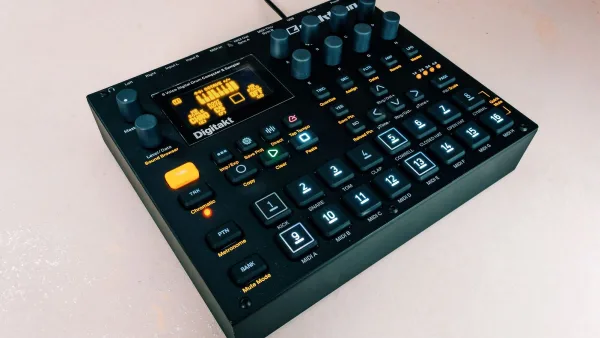
The 4×8 performance grid is the main interface. The grid serves different functions depending on which mode is active: in step sequencer mode, each row represents one of the six tracks (two synths, four drums), and each column represents one of the 16 or 32 steps in the pattern. Buttons light up to show active steps. Press a lit button to deactivate a step; press a dark button to activate it. This is the core programming interaction — all pattern programming happens this way.
Loading Sounds
Each synth track has a patch slot. Patches are accessed via the patch buttons on the side of the unit. The factory patches cover a range of synthesiser sounds. To audition a patch, hold the patch button and press a grid button. The sound plays through the current step length. For custom patches, use Novation Components to load and manage sounds from your computer.
Building a Pattern
Start the sequencer with the Play button. Activate and deactivate steps in real time as the pattern plays. Changes are heard immediately — this is the key workflow difference from many other step sequencers, which require stopping playback to edit. Build up the synth patterns, then switch to the drum tracks and add drum steps. Each track’s pattern can be a different length, which produces polyrhythmic results automatically.
Sessions and Patterns
Up to 64 patterns are available per session. Navigate between patterns using the pattern buttons. Chain patterns for longer arrangements. The session is stored on the unit and retained after power off. Back up your sessions regularly via Novation Components to avoid losing work between firmware updates or factory resets.
For a full explanation of features and model differences, see our Novation Circuit overview. For buying guidance, read the buyer’s guide.





Comments