


Behringer Touch article
Behringer Touch for Beginners: A Complete Guide
New gear is always a little daunting on day one — here's a patient, step-by-step way into your first session with a Behringer X-Touch.
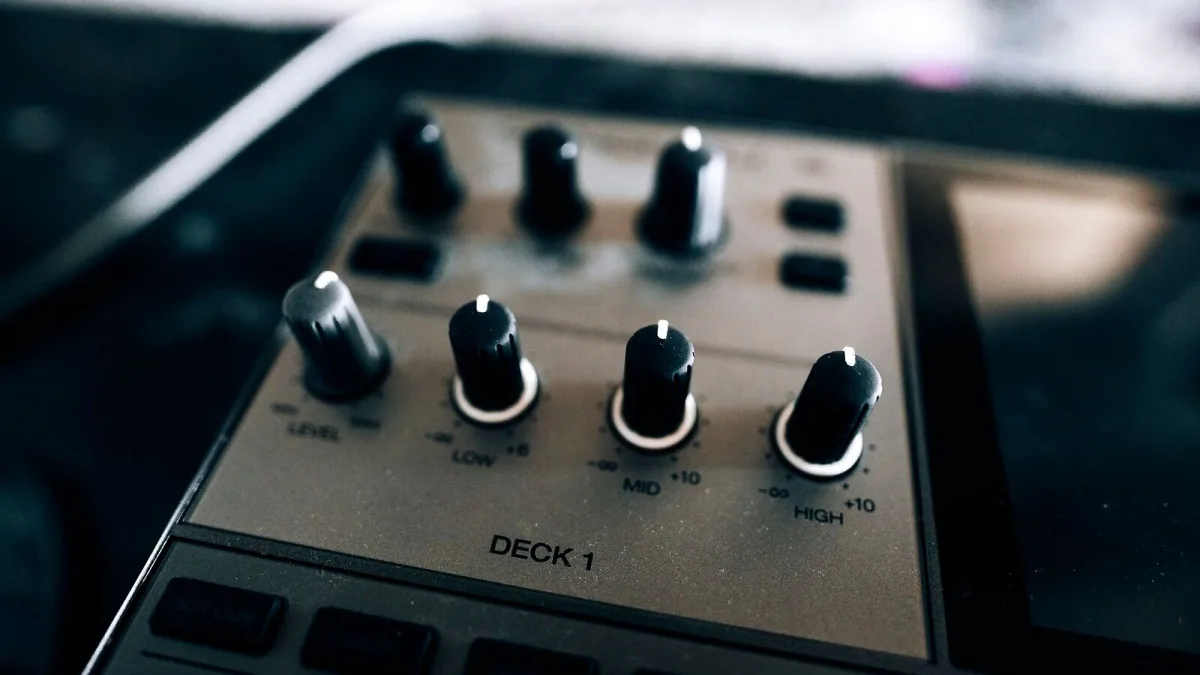
New gear is always a little daunting on day one, and a Behringer X-Touch has a lot of buttons for something you've probably never used before. Take a breath — we'll go through it patiently, the same way I'd introduce any new piece of equipment to a student, one step at a time.
What Your Behringer X-Touch Actually Does
Before you touch a single fader, it helps to know what this thing does and doesn't do. It's a control surface: it lets you move faders and turn knobs to control your recording software (your DAW), rather than clicking everything with a mouse. It doesn't record sound, and it doesn't plug into your keyboard directly for audio — your interface or your computer still handles that part.
Plugging It In
Start simple. Connect it to your computer using USB — that alone is enough to get going for most home setups. Five-pin MIDI and, on the full-size model, Ethernet are there for more advanced situations, but you don't need to worry about those on day one.
Telling Your Software What It's Talking To
This is the step beginners most often skip, and it's the one that causes the most confusion later. Your recording software needs to be told, in its preferences or settings, that a control surface is connected and which protocol it should use — usually Mackie Control or HUI. Find your DAW's control surface settings before you start pressing buttons, and this whole process gets far less mysterious.
Your First Ten Minutes
- Move one fader. Watch what happens on screen. If it's mapped correctly, you should see the corresponding channel's volume move in your software.
- Try the transport buttons. Play and stop are the easiest way to confirm the connection is genuinely working both ways.
- Turn one rotary encoder. Notice how the LED ring around it often shows the current value at a glance.
- Don't try to learn every button at once. Faders, transport and one or two encoders are plenty for your first session.
Common Early Confusions, Explained Gently
If a fader doesn't move when you expect it to, that's almost always a mapping or protocol setting, not a fault with the hardware — double-check your DAW's control surface preferences before assuming anything is broken. If buttons seem to do something different from what a guide describes, remember that not every DAW implements the Mackie Control or HUI protocol identically, so a small amount of variation between software is completely normal, not a sign you've done something wrong.
Building Confidence From Here
Once moving a fader and hitting play and stop feels natural, start layering in more: try pan controls, then plug-in parameter mapping, then automation recording. There's no rush. Every keyboard player who now mixes confidently with hardware faders started exactly where you are, pressing one button at a time and wondering what it did.
If you'd like the fuller technical picture once the basics feel comfortable, our overview guide covers what's on each model in more depth, and our piece on common mistakes to avoid is worth a read before you settle into your own habits.
The Bottom Line
You don't need to understand every function to get real benefit from a Behringer X-Touch on your first day. Plug it in, tell your software what it is, move one fader, and build outward from there. That's genuinely all it takes to get started well.




Comments