


Notion Notation Software article
Notion Notation Software for Beginners: A Complete Guide
Notion is approachable for beginners — if you start in the right place. Here is how to get your first score written and sounding good from scratch.
Opening a notation application for the first time can feel overwhelming — the screen is full of symbols, palettes and menus that mean nothing yet. Notion notation software is actually one of the more approachable programs in this space, but you still need to know where to start. This guide walks you through the first sessions clearly, without assuming you already know what a key signature or a grace note is.
Before You Open the App
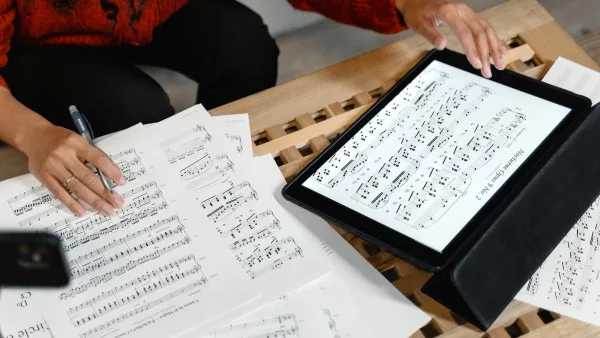
Music notation software is a tool for writing musical scores — the standard printed form of music, with notes on a stave, time signatures, bar lines and all the rest. It is not a recording tool; it is not a DAW. You type in notes and it plays them back and produces printable sheet music.
Notion is available on Mac, Windows, iOS and Android. If you are on a tablet, download the iOS or Android version. If you are at a desktop or laptop, install the desktop application. The interface and workflow are similar across all platforms.
Creating Your First Score
When you open Notion, you start by creating a new score — choosing which instruments are in your piece. This is the foundation everything else builds on. A score can be as simple as one piano stave or as complex as a full orchestra.
For a first go, start simple: create a score for just piano. You get a treble and bass clef stave, and you can enter notes immediately. Later you can add instruments, but for learning the basics, one instrument is plenty.
Entering Notes: The Three Main Methods
Mouse/Touch Entry
Click (or tap) a note value from the input palette — a crotchet, say — then click on the stave at the pitch you want. The note appears and the cursor moves to the next beat. This is the clearest method for beginners because you can see exactly what you are doing at each step.
Keyboard Entry
Press N (or equivalent) to enter note input mode. Use number keys to select note lengths (4 = crotchet, 5 = minim, 3 = quaver), and letter keys (A through G) to enter pitches. This becomes much faster than mouse entry once you learn the shortcuts — spending an hour on it is a good investment.
MIDI Keyboard Entry
If you have a MIDI keyboard, connect it and Notion can record notes in step time (one at a time, while you select note values) or real time (you play along to the metronome). Real-time recording is great for capturing a performance; step time gives you more control over rhythm.
Playback: Hearing What You Have Written
Press the spacebar to hear your score play back. Notion uses its built-in sound library, which is genuinely good for a notation program — you will hear a realistic piano, not a hollow MIDI blip. Dynamics you mark (p, mf, f) affect the playback volume; articulations (staccato, legato) change the note shapes. Experimenting with this is one of the best ways to understand what notation markings actually mean.
Saving and Syncing
Save frequently. Notion can sync scores to the cloud so they are available on your tablet when you are away from your desk — a useful feature once your workflow spreads across devices. The cloud sync is automatic once you have logged into your PreSonus account on each device.
Three Things to Learn First
- Note input keyboard shortcuts — they make working in Notion ten times faster. Learn number keys for note lengths and letter keys for pitches before anything else.
- How to add dynamics and articulations — find the relevant palette and click onto a note. These markings change the playback and are essential for producing a usable score.
- How to export to PDF or MusicXML — knowing how to get your score out of Notion and share it or print it is important from day one. File → Export → PDF is all it takes.
Once you are comfortable with the basics and considering whether Notion notation software is worth buying as a long-term tool, read the buyer's guide for a clear decision framework. For a full rundown of features, the complete Notion guide covers everything in one place.
The Bottom Line
Starting with Notion notation software is straightforward if you take it one step at a time. Create a simple piano score, learn the note input method, hit play, and listen. You do not need to understand everything on day one — start with what gets a note on the page, and build from there. Most people are writing simple pieces within the first hour.



Comments