


Hercules DJ Controller article
Hercules Dj Controller for Beginners: A Complete Guide
Everything you need to get started — setup, software, first mix, EQ basics and how to actually improve from there.

Getting started with a Hercules DJ controller is more straightforward than a lot of beginner guides make it sound. You get hardware, software and an audio interface in one box. Set it up properly and you can be actually mixing tracks within the first hour. Here's how.
What's in the Box
Every model ships with the controller, a USB cable, documentation and a code or download link for DJUCED — Hercules's DJ software. Some models also include a pair of basic earbuds, though you'll want proper closed-back headphones for cueing as soon as possible. There's no separate audio interface to source: the soundcard is built into the controller itself.
First Setup: Step by Step
Work through these in order. The most common mistake with any Hercules DJ controller is skipping the audio configuration step and wondering why there's no sound.
- Download and install DJUCED. Go to the Hercules website and download the current version of DJUCED for your operating system. Install it before connecting the controller.
- Connect the controller via USB. The controller draws power and transmits audio over a single USB cable. Connect it to your laptop before opening DJUCED.
- Open DJUCED and let it detect the controller. DJUCED will recognise the connected hardware automatically. You should see the controller layout appear in the software interface.
- Configure the audio output. In DJUCED's settings, set the audio device to the built-in Hercules soundcard. Set your master output to the main output and your cue to the headphone output.
- Load your music. Point DJUCED at your music folder or connect a streaming service. Drag a track to deck 1 and a second track to deck 2.
- Make your first mix. Press play on deck 1. Get deck 2 playing in your headphones. Adjust the tempo on deck 2 until the beats align. Bring the crossfader across slowly. That's a basic mix.
Understanding the Layout
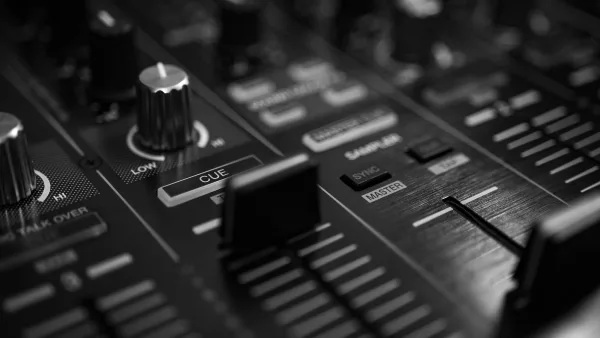
The controller surface divides into three main sections: deck 1 on the left, deck 2 on the right and the mixer in the centre. The mixer has a channel fader and EQ for each deck, plus a crossfader at the bottom. The jog wheels are the large circular platters above each deck section.
The EQ controls — high, mid, low on each channel — are where most of the action happens during a mix. Cutting the low (bass) on the outgoing track while keeping it on the incoming one is one of the most fundamental DJ techniques. Start experimenting with this early.
The Sync Button: Use It, Then Learn Without It
DJUCED includes a sync button that automatically matches the tempo of the two decks. It's useful and there's no shame in using it while you're learning. But at some point, turn it off and practice beatmatching manually — listening to both tracks in your headphones and adjusting the tempo until they line up. It's a fundamental skill that'll make everything else easier.
Cue Points and Loops
Once you're comfortable with basic transitions, explore cue points (markers set to specific moments in a track) and loops (repeating sections). These are controlled through the performance pads on the controller. DJUCED's onscreen tutorial walks through both. Start with cue points — they let you jump to the start of a breakdown or chorus precisely, which helps with timing your transitions.
Learning From Here
The best thing you can do after the first setup is record a practice mix and listen back. You'll immediately hear things you didn't notice while playing — timing issues, dead air, transitions that didn't land. That's exactly what you should be hearing. Do it repeatedly.
There's a lot of good material on YouTube for this specific gear: search for DJUCED tutorials and Hercules DJ controller walkthroughs. The community around this range is active because it's the setup a lot of people start on.
You're Ready
A Hercules DJ controller removes most of the friction that used to make getting started with DJing complicated. The setup is clean, the software is capable and the learning curve is realistic. Put the time in with it.
Want to understand the full range before you buy? See our overview guide. Looking at which model to choose? The buyer's guide breaks it down.




Comments