


Keyboard M Audio article
Common Keyboard M Audio Mistakes to Avoid
Most M-Audio keyboard mistakes are avoidable with a little knowledge upfront. Here are the most common errors — from buying the wrong size to getting setup wrong — and what to do instead.
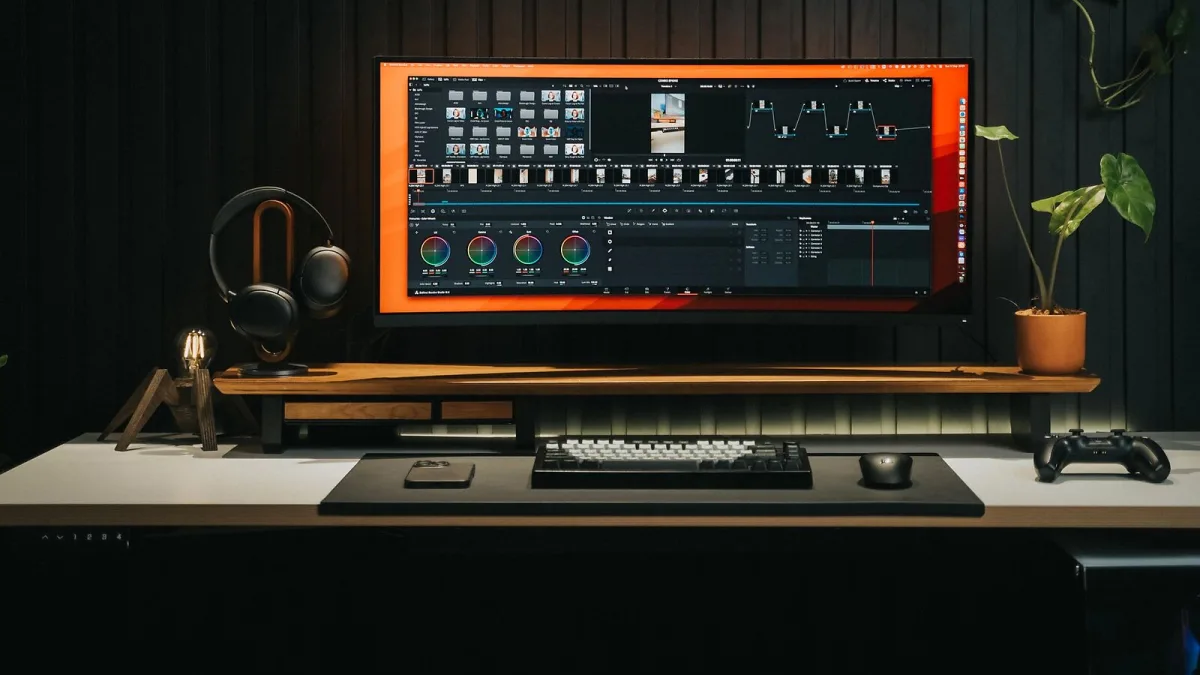
Most problems people run into with an M-Audio keyboard are avoidable. They tend to fall into a few predictable categories: buying the wrong size, getting the setup wrong, or misunderstanding what the keyboard actually does. Here are the most common errors, with clear guidance on how to avoid them.
Mistake 1: Buying Too Few Keys
This is the most common regret. A 25-key controller feels like enough when you first see it, and it is fine for triggering sounds and programming beats. But once you try to play two-handed melodies or work through piano lessons, 25 keys is immediately limiting. Most players who buy compact for convenience end up buying a larger unit within a year.
If you are learning piano or want to play properly with two hands, buy at least 49 keys, and ideally 61 or 88. Save the compact option for a second controller, not your main instrument.
Mistake 2: Choosing Unweighted Keys for Piano Practice
Unweighted synth-action keys are light and fast. They are well-suited to electronic music production but poorly suited to building piano technique. Piano playing requires resistance — a light key teaches your fingers a fundamentally different movement. Practising on unweighted keys and then moving to a real piano is jarring; the technique does not transfer cleanly.
For piano learning, choose semi-weighted at minimum. The Keystation 88's hammer-action is the best M-Audio keyboard choice for technique development. The additional cost is worthwhile if piano is the actual goal.
Mistake 3: Expecting Built-In Sound
Most M-Audio keyboard controllers have no internal sounds. Buyers sometimes expect to unbox, connect headphones, and hear music. This does not happen with most models — the keyboard sends MIDI data and requires software on a connected computer to produce audio.
If this surprises you at setup, the fix is simple: install the bundled software (Ableton Live Lite) or use GarageBand on Mac, connect the keyboard via USB, and select a virtual instrument. You will hear sound immediately once the software is configured.
Mistake 4: Skipping Driver and Software Setup
On most modern systems, the keyboard is recognised automatically. But if your DAW does not see it, the issue is usually with the DAW's MIDI settings rather than the hardware. Check that MIDI input is enabled in your software's preferences, and that the correct input is selected. Restarting the software with the keyboard already connected often resolves recognition issues.
Mistake 5: Not Calibrating Velocity Sensitivity
The way an M-Audio keyboard responds to how hard you press the keys (velocity sensitivity) can be adjusted. Out of the box, the sensitivity may feel either too light (loud note from gentle touch) or too heavy (quiet note unless you play hard). Most units allow you to set velocity curves in the accompanying software or in your DAW. Take ten minutes to set this up — it makes the playing experience significantly more natural.
Mistake 6: Ignoring the Bundled Software
The included software package is not glamorous, but it is complete enough to start immediately. Many buyers ignore it and spend money on additional plugins before they understand what they already have. Ableton Live Lite, included with most M-Audio keyboards, is a fully functional production environment with a real learning curve. Explore it properly before adding anything else.
For more on the range and what to look for, the full overview covers the product lines in detail. And the buyer's guide covers what to prioritise when choosing.





Comments