


Tuner App article
Common Tuner App Mistakes to Avoid
Using a tuner app sounds foolproof, but a handful of easy mistakes can leave your instrument still sounding off. Here is what to watch out for.
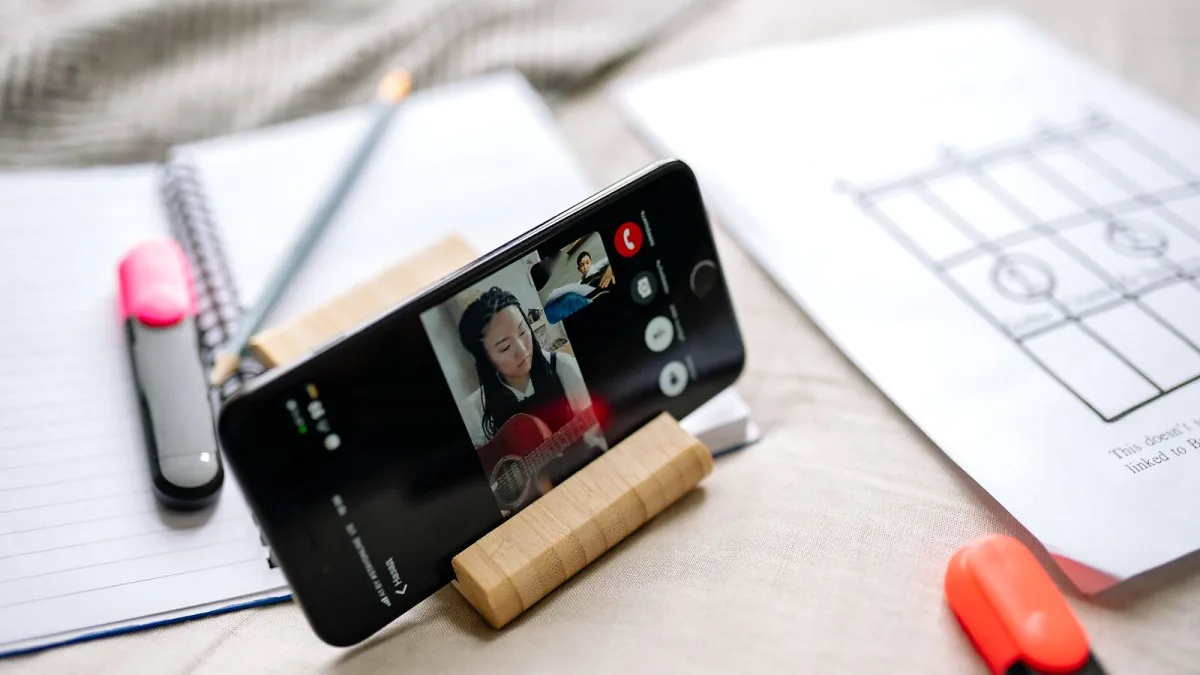
Tuner apps are simple tools, but they are easy to use badly. The result is always the same: strings that read "in tune" on the display but sound off the moment you strum a chord. Most of these problems come from a handful of predictable mistakes — and once you know what they are, they are straightforward to avoid.
Mistake 1: Tuning in a Noisy Environment
This is the most common error, and it undermines everything else. The microphone on your phone picks up every sound in the room — TV in the background, other musicians warming up, air conditioning hum, even a fridge buzz. When the algorithm is picking up competing frequencies, the display will jump around and give you unreliable readings.
The fix: Tune somewhere quiet, or at the very least in a brief window between sounds. In a busy rehearsal space, consider plugging your electric guitar directly into your phone via a TRRS adapter — you get the instrument's signal cleanly, without the room getting involved.
Mistake 2: Plucking Too Softly
A barely audible note is harder for a pitch-detection algorithm to read accurately. Soft plucking produces a weaker signal with a less defined fundamental frequency, which can cause the display to hesitate, drift or register the wrong note entirely.
The fix: Play the string with a firm, confident pick or finger stroke. Not aggressive — just enough to produce a clear, sustained note. If you are using an acoustic instrument, hold the phone close to the sound hole or body, not the headstock.
Mistake 3: Reading the Display Too Quickly
When a string is plucked, the initial attack has a slightly different pitch envelope than the sustained note. Many players glance at the display the moment they pluck and think they are sharp or flat, when in fact the note has not had time to stabilise. They then adjust the peg unnecessarily and end up further out of tune than they started.
The fix: Pluck the string and wait one to two full seconds before reading the result. Let the display settle into a steady position, then make your judgement. Patience here saves you multiple correction passes.
Mistake 4: Turning the Peg Too Far
Tuning pegs are sensitive. A quarter-turn on a guitar tuner can shift the pitch by a surprising amount, especially on cheaper instruments. Players who crank the peg while watching the display often overshoot the target and spend twice as long correcting themselves.
The fix: Make small adjustments — a tiny fraction of a turn — then pluck again and re-read. Work your way gradually toward the centre. If you accidentally go too sharp, loosen the string past the target and approach from below — always tune up to a note, never down, so the string settles at the correct tension.
Mistake 5: Not Checking Strings Again After Tuning All of Them
Tightening strings adds tension to the neck of the instrument. On a guitar, tightening the top strings can pull the lower strings slightly sharp, and vice versa. Players who tune each string once and then stop are often still slightly out of tune across the whole instrument.
The fix: After tuning all strings, do a second pass. Start from the thickest string again and re-check each one. On a fresh set of strings or after a significant temperature change, you may need three passes before everything settles together.
Mistake 6: Using the Wrong Reference Pitch
Most tuner apps default to A440 — the standard concert pitch — and that is correct for virtually all everyday use. But some apps remember a previous session's calibration setting, or come with a non-standard default. A reference pitch of 432 Hz or 445 Hz will cause every note to read as in tune on the app but be noticeably off when you play with others or against a backing track tuned to 440 Hz.
The fix: Check the calibration setting in your app before tuning sessions, especially if you have been experimenting. Make sure it reads 440 Hz (or whatever standard your ensemble uses). It is a ten-second check that saves a lot of confusion.
Mistake 7: Relying on the App Instead of Your Ears
A tuner app gets strings to a technically correct pitch. But intonation — whether the instrument stays in tune as you play up the neck — is a separate matter, and it cannot be fixed with a tuner app. If your guitar chords sound off even after careful open-string tuning, the intonation may need adjustment, the nut may be worn, or the strings may be old. The app can only tell you about the open string; your ears need to judge the rest.
The fix: Use a tuner app as your baseline, then use your ears to confirm. Play a chord after tuning and listen critically. If something still sounds wrong, the problem is elsewhere — not in how you used the app.
The Bottom Line
A tuner app is only as useful as the person using it. Avoid the seven mistakes above and you will consistently get accurate results with minimal fuss. For a deeper understanding of how these tools work under the hood, see the full explainer on tuner app features and types. If you are setting up a new app for the first time, the step-by-step setup guide walks through every part of the process.




Comments