


Dorico article
Dorico Explained: Features, Types and Tips
Dorico rethinks how notation software handles musical structure. Here's what it does, how its editions compare, and what new users most need to understand.
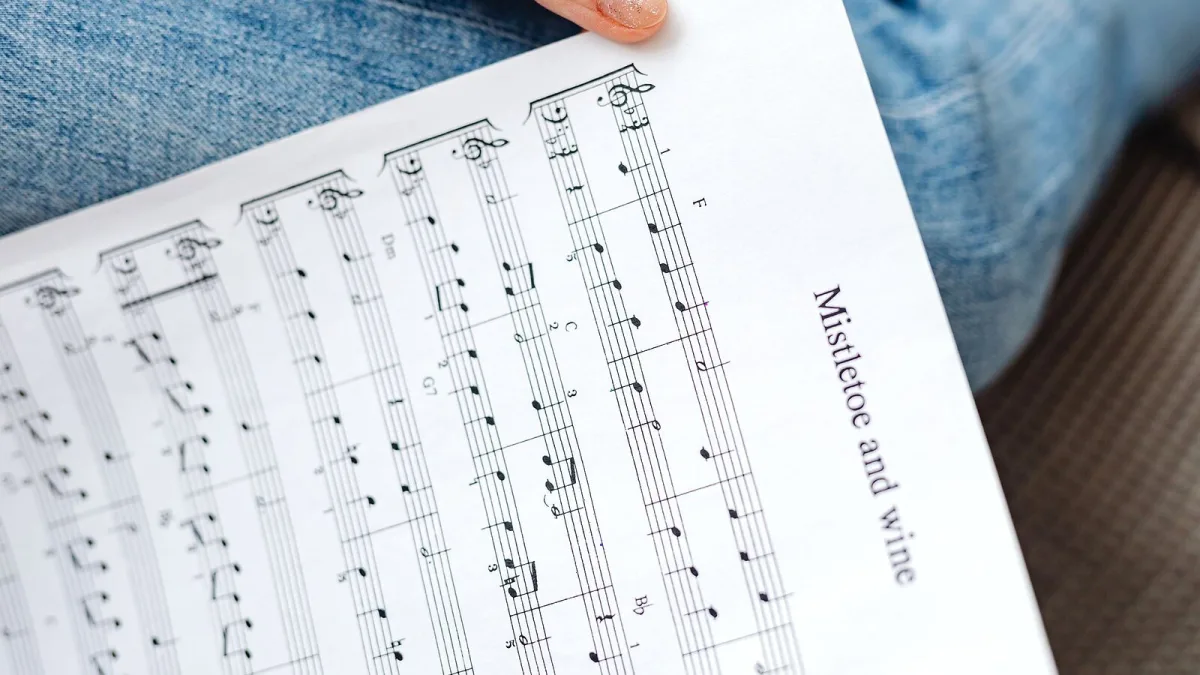
If you've spent any time around music notation software, you've heard about Dorico. Steinberg's scoring application has carved out a serious reputation since its launch, and for good reason: it rethinks several assumptions that older notation programs treated as fixed. Whether you're a composer, arranger or teacher, understanding what makes it tick is worth the effort.
What Dorico Actually Is
Dorico is a professional music-notation and scoring application made by Steinberg — the German company behind Cubase and WaveLab. It handles composing, arranging, engraving, playback, part production and printing. Where it differs from competitors is in its underlying model: rather than treating every note and marking as a page object, the application understands the musical structure behind the notation.
That difference matters in practice. When you add an instrument to your score, it automatically creates a linked part. When you transpose, it handles the transposing instruments. When you change a dynamic in the full score, the part updates. Less manual correction, fewer missed changes.
The Core Concepts: Players, Flows and Layouts
The terminology can trip up new users, but once it clicks, the logic is clear.
- Player: a performer or instrumental role in your ensemble.
- Instrument: the sound-producing instrument assigned to a player (a player can hold multiple instruments for doubling).
- Flow: a musical unit — a movement, a song, a scene, an exercise. One project can contain many flows.
- Layout: a view of the music — the full score, an individual part, or a custom arrangement of players and flows.
This separation is powerful. A symphony lives as one project with multiple flows and a full-score layout alongside however many part layouts you need — all linked to the same underlying music. Make a correction anywhere, and it propagates correctly.
Dorico Editions
The software comes in four tiers, each aimed at a different level of use.
- Dorico Pro: the full professional version. Advanced engraving, condensing, divisi, complex layout control, the complete sound library and the full set of notation tools. This is what film scorers, publishers and serious composers use.
- Dorico Elements: core notation, playback, engraving and part production at a lower price point. Restrictions apply — fewer layout options and some Pro-only engraving features are unavailable.
- Dorico SE: a free, basic edition for getting started. Instrument and feature limits apply, but it's a legitimate way to learn the interface.
- Dorico for iPad: a touch-oriented mobile edition supporting projects of up to eight instruments. Great for sketching and teaching; exports PDF, audio and MusicXML.
Key Features
Automatic engraving
The software spaces notes, avoids collisions between dynamics, articulations and text, and handles transpositions automatically. A Berklee review noted that its collision avoidance represents a genuine improvement over older software, though manual proofing is still necessary for publication-quality work.
Linked parts
Parts are generated directly from the score. There is no separate process of "extracting" parts and then maintaining two separate files. A fix in the score appears in the part; a rehearsal mark added to the part can be visible in the score.
Playback and the mixer
It includes a mixer, effects, a piano roll, velocity editing and Steinberg's sound library — hundreds of instruments — for realistic playback. Groove Agent SE handles drum playback in relevant editions. It's useful for checking rhythm, register and orchestration, though it's not a substitute for human performance.
Multiple input methods
You can enter notes via MIDI keyboard, computer keyboard, mouse, on-screen piano keyboard, guitar fretboard or drum pads. Insert mode lets you add notes inside an existing passage without manually rewriting what follows.
Practical Tips for Getting Started
New users consistently make the same early mistakes. A few habits worth building from day one:
- Set up Setup mode first. Define your players, instruments and flows before entering a single note. Reorganising later is possible but time-consuming.
- Use flows for separate pieces. A concert programme, a suite or an exam paper works best as one project with multiple flows — not as separate files.
- Work in concert pitch. Enter and check harmony in concert pitch; inspect transposed layouts before delivery.
- Treat auto-engraving as a starting point. The default result is strong, but publication-quality work requires checking page turns, staff spacing and cue readability manually.
For a step-by-step introduction aimed at first-time users, see the Dorico beginner's guide. If you're weighing up which edition to buy, the Dorico buyer's guide breaks down the differences in detail.
Where Dorico Fits in the Market
Dorico's main competitors are Sibelius (by Avid) and the discontinued Finale. MuseScore provides a free alternative with a large community. Dorico's advantages are its automatic engraving quality, linked-parts workflow and the coherence of its project model. Its learning curve is steeper than MuseScore's but its professional output is consistently strong.
For composers moving from Finale, a Berklee article specifically recommends spending time learning Dorico's concepts rather than trying to replicate the old object-by-object workflow — good advice that saves a lot of frustration.
The Bottom Line
Dorico rewards the effort. Its project model is genuinely well-designed The automatic engraving handles a lot of tedious work, and the linked-parts system removes a chronic source of errors. Start with SE to get used to the interface, then move to Elements or Pro when the project demands it.



Comments