


Sony Headphones guide
How to Set Up and Use Sony Headphones
Unboxed but not sure where to start? Here's a step-by-step guide covering initial charge, Bluetooth pairing, companion app setup and noise cancellation configuration.
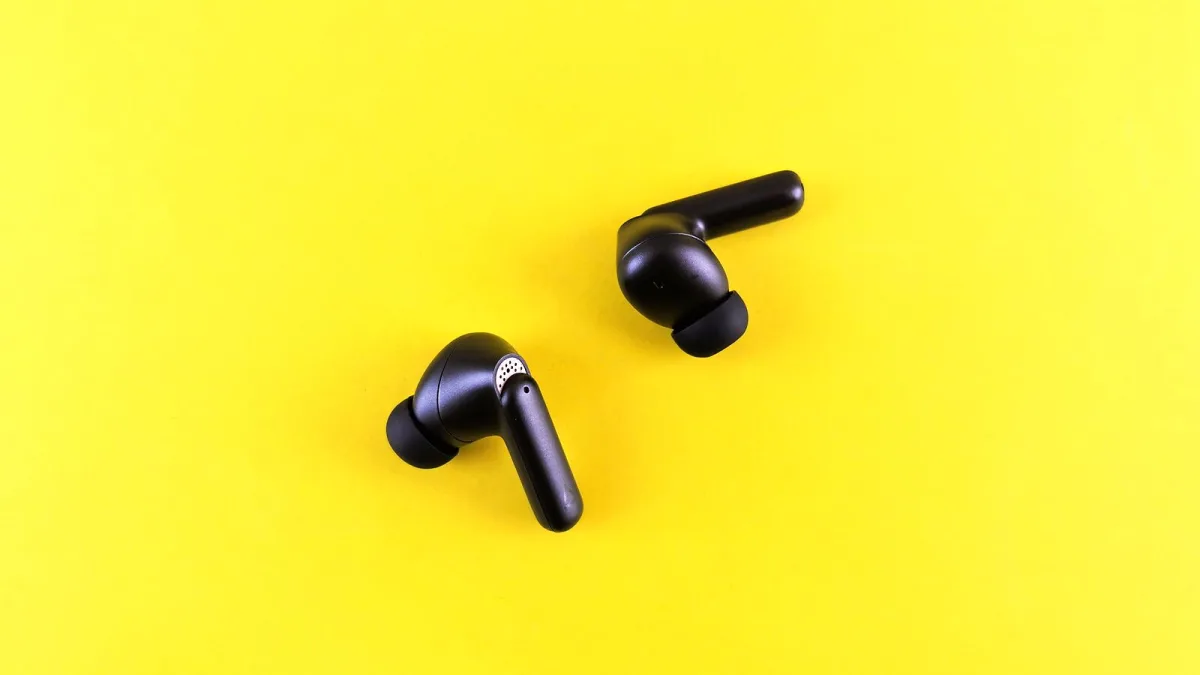
Getting the most from Sony headphones involves more than unboxing and connecting. The initial setup — pairing, app configuration and audio settings — takes twenty minutes and makes a meaningful difference to the day-to-day experience. Here is the process from the beginning.
Step 1: Charge Before First Use
Charge via USB-C until the indicator shows full before the first session. Most Sony headphones arrive partially charged, but a full initial charge is good practice. Charging to full before use is not required to preserve battery health — lithium batteries used in the range do not have a memory effect — but it ensures a complete battery profile read for the device's charge indicator to work accurately.
Step 2: Pair via Bluetooth
Hold the power button until the Bluetooth indicator flashes. On the device to be paired (phone, laptop, tablet), open Bluetooth settings and select the headphone model from the list of available devices. Pairing completes in a few seconds. The wireless models support multipoint pairing — connecting to two devices simultaneously — which is configured through the companion app after initial setup.
Step 3: Install the Sony Headphones Connect App
The companion app (available on Android and iOS) is where most of the useful configuration lives. Through the app, you can adjust the equaliser, configure noise cancellation levels, set up the touch or button controls, manage multipoint devices, and enable Ambient Sound Mode. It also provides firmware updates when they are available. Connect your Sony headphones to the app as soon as possible after pairing — firmware updates in particular can improve noise cancellation performance and fix bugs present at launch.
Step 4: Configure Sound and Noise Cancellation
Set the equaliser to your preferred profile — or leave it flat for the most accurate response. Set noise cancellation to your typical use environment. The adaptive settings in higher-tier models can detect whether you are commuting, walking or stationary and adjust automatically. Ambient Sound Mode is worth enabling for situations where you need to hear your environment without removing the headphones. Once these are set, the configuration for your Sony headphones persists across sessions without repeating the process. For more on which models offer the best noise cancellation, the full brand overview breaks down the product lines in detail.





Comments